
# How to Reduce Docker Image Size for Node.js Apps (1.3GB → 256MB, Measured)
TL;DR: To reduce Docker image size for a Node.js app, add a .dockerignore that excludes node_modules, use a multi-stage build so devDependencies and build tools never reach the final image, install production dependencies with npm ci --omit=dev, order your COPY/RUN instructions so dependency layers cache separately from source code, and switch your base image from full node to -slim, -alpine, or a distroless image. On a small Express + TypeScript API we built for this article, those steps took the image from about 1.3GB to 256MB on disk (435MB to 86MB compressed); switching the base to Alpine got it to 193MB.
If you docker build a typical Express or Next.js app with a default Dockerfile, you can easily end up with an image over 1GB once devDependencies, TypeScript, and the full node_modules tree get baked in — our own test app, with just three runtime dependencies, came out at about 1.3GB. None of that belongs in production. This tutorial walks through a real before/after Dockerfile, step by step, and shows how to measure the improvement instead of guessing at it.
Why Node.js Docker images balloon in size
A naive Dockerfile usually looks like this:
FROM node:22
WORKDIR /app
COPY . .
RUN npm install
CMD ["node", "server.js"]
Three things go wrong here:
1. `FROM node:22` pulls the full Debian-based image, which bundles a complete build toolchain (gcc, make, python3, etc.) that a running app never needs. On Docker Hub, the plain node:22 tag is a ~408MB compressed image — the node:24 tag is similar, at ~410MB compressed (Docker Hub, `node` tags).
2. `COPY . .` with no `.dockerignore` copies your local node_modules, .git, and .next/dist build artifacts into the build context and then into the image.
3. `npm install` (not npm ci) installs devDependencies — TypeScript, ESLint, test runners, bundlers — into the same layer that ships to production.
How to reduce Docker image size for Node.js in 5 steps
The rest of this tutorial covers, in order: a proper .dockerignore, a multi-stage build, npm ci --omit=dev, layer ordering for cache hits, and base image choice. Apply them cumulatively — each step builds on the last.
Step 1: Add a .dockerignore so node_modules never enters the build context
The single most common cause of bloated build context (and accidentally-copied node_modules) is a missing or incomplete .dockerignore. Docker sends everything in the build context to the daemon before the first instruction even runs, so a local node_modules directory here slows every build and, if your Dockerfile does COPY . . before installing, ships your host's (potentially wrong-platform) dependencies straight into the image.
# .dockerignore
node_modules
npm-debug.log
.next
dist
build
coverage
.git
.gitignore
.env
.env.*
*.md
.vscode
Dockerfile
.dockerignore
Docker's own containerization guidance for Next.js recommends excluding node_modules, build output (.next, out), and env files from the build context for exactly this reason (Docker Docs, Containerize a Next.js application).
Step 2: Multi-stage Docker build for Node, step by step
A multi-stage build compiles your app in a "builder" stage that has the full toolchain and devDependencies, then copies only the compiled output and production dependencies into a slim final stage — the compiler, source .ts files, and dev tooling never make it into the image you ship.
# ---- builder stage: has devDependencies + build tools ----
FROM node:24-bookworm-slim AS builder
WORKDIR /app
COPY package.json package-lock.json ./
RUN npm ci
COPY . .
RUN npm run build

# ---- runtime stage: only what's needed to run the app ----
FROM node:24-bookworm-slim AS runtime
ENV NODE_ENV=production
WORKDIR /app
COPY package.json package-lock.json ./
RUN npm ci --omit=dev
COPY --from=builder /app/dist ./dist
USER node
EXPOSE 3000
CMD ["node", "dist/server.js"]
The COPY --from=builder instruction is doing the real work: it reaches into the first stage and pulls out only /app/dist, discarding everything else — devDependencies, the TypeScript compiler, test files, and npm's cache — none of which exist in the final runtime stage at all.
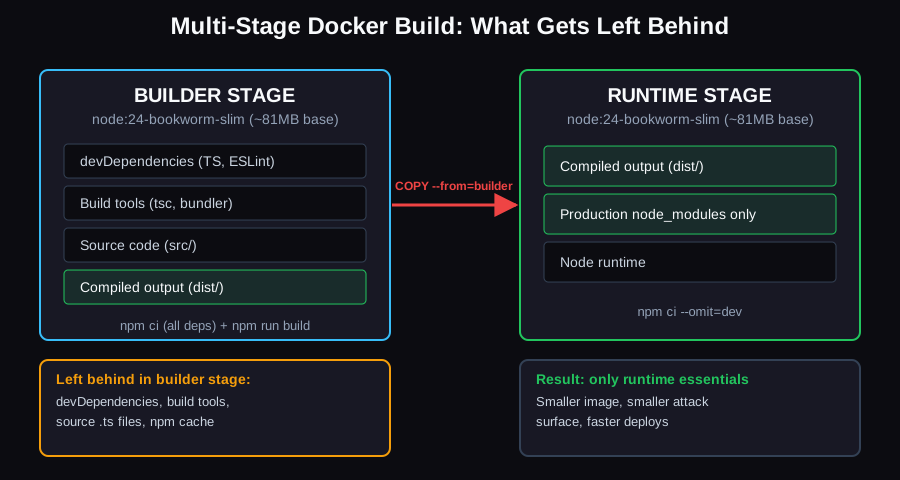
The builder stage keeps devDependencies and build tools; only the compiled output and production `node_modules` cross into the runtime stage.
Step 3: npm ci --omit=dev in Docker — what it does and why it matters
npm ci --omit=dev installs your dependency tree from the lockfile while skipping everything listed under devDependencies, giving you a reproducible, production-only node_modules — this is what you want in the final Docker stage, not npm install.
Per npm's own docs, npm ci is "similar to npm install, except it's meant to be used in automated environments" — it requires an existing package-lock.json, and if the lockfile doesn't match package.json it fails instead of silently rewriting the lock (npm Docs, `npm ci`). That determinism is exactly what you want in CI and in a Docker build. The --omit=dev flag (npm's replacement for the older --production flag) excludes devDependencies from what's written to disk, while still resolving them in the lockfile so the build stays reproducible (npm Docs, `npm ci`).
Concretely: in the runtime stage above, RUN npm ci --omit=dev means TypeScript, Jest, ESLint, Webpack/tsc, and their transitive dependencies never get installed into that layer at all — they simply don't exist in the final image.
Step 4: Order Dockerfile layers so source changes don't bust the dependency cache
Docker caches each layer and reuses it on the next build if the instruction and its inputs are unchanged. If you COPY . . before RUN npm ci, then any source file change — even a one-line CSS tweak — invalidates the npm ci layer and forces a full dependency reinstall on every build.
Copy package.json/package-lock.json first, install, then copy the rest of the source:
FROM node:24-bookworm-slim AS builder
WORKDIR /app
COPY package.json package-lock.json ./   # changes rarely
RUN npm ci                                # cached unless deps change
COPY . .                                  # changes often
RUN npm run build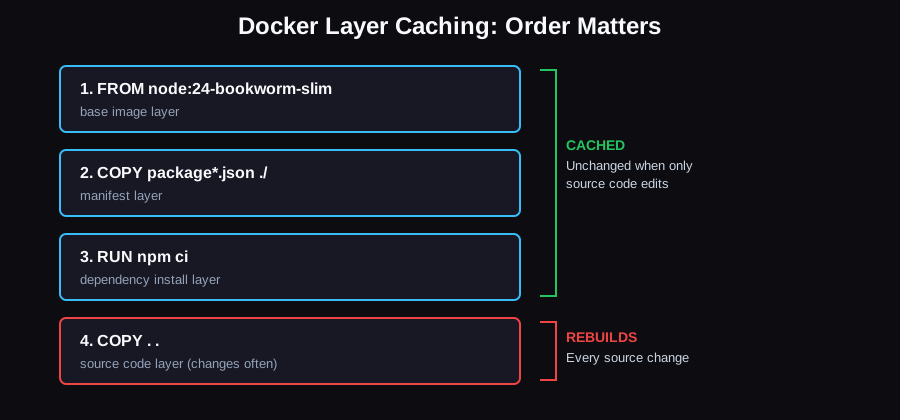
Because `package.json` is copied and installed before the rest of the source, editing application code only invalidates the top layer — the dependency install layer stays cached.*
This doesn't shrink the image itself, but it's what makes iterating on a small image fast — without it, every build re-runs a full npm ci, which is slow enough that teams quietly drift back to bloated, rarely-rebuilt images.
Node alpine vs slim vs distroless: which base image should you use?
For most Node.js production apps, node:XX-bookworm-slim is the safer default; node:XX-alpine is smaller but uses musl libc, which can break native addons like sharp, bcrypt, or sqlite3 unless you rebuild them for musl, and distroless images drop the shell and package manager entirely for the smallest attack surface at the cost of debuggability.
Here's what each option actually measures at, per Docker Hub's published compressed image sizes for linux/amd64 at the time of writing (Docker Hub, `node` tags):
| Base image | Compressed size | libc | Shell / package manager | Trade-off |
|---|---|---|---|---|
node:24 (full, Debian bookworm) | ~410MB | glibc | bash, apt | Full toolchain; fine for local dev, wasteful in prod |
node:24-bookworm-slim | ~81MB | glibc | bash, apt (minimal) | Best default: glibc compatibility, much smaller than full |
node:24-alpine | ~62MB | musl | ash, apk | Smallest common option; native-module risk |
gcr.io/distroless/nodejs24-debian13 | not published on Docker Hub (hosted on GCR) | glibc | none — no shell, no package manager | Smallest attack surface; hardest to exec into for debugging |
The musl-vs-glibc issue is the real gotcha with Alpine: packages with native C++ addons — sharp, bcrypt, sqlite3, canvas, anything compiled via node-gyp — are often published with prebuilt glibc binaries but sparser (or no) musl-compatible binaries for a given Node version. On Alpine, npm install can fall through to compiling from source, which fails immediately unless you've installed python3, make, and g++ in that stage, or it can install successfully but crash at runtime with a missing shared library error. If your app has zero native dependencies, Alpine is a reasonable way to shave off another ~20MB. If it has any, -slim avoids the class of bug entirely.
Distroless images (gcr.io/distroless/nodejs24-debian13 and similar, maintained by Google) go further: no shell, no apt/apk, no package manager at all — just the Node.js runtime and your app (GoogleContainerTools/distroless, nodejs). That's excellent for reducing attack surface (there's no shell for an attacker to pop even if they achieve code execution), but it also means you can't docker exec -it <container> sh to poke around — use the -debug tag variant during troubleshooting, and the regular (non-debug) tag in production.
Measuring the result with docker images and docker history
Don't guess — measure before and after each change.
# Compare overall image sizes
docker images | grep myapp

# See per-layer size breakdown, largest layers first
docker history myapp:latest --no-trunc
docker history shows you the size each RUN/COPY instruction added, which quickly reveals whether, say, an apt-get install you forgot to clean up is adding 80MB you didn't notice. For a deeper look — which files inside a layer are actually taking up space, and how much space is wasted by files overwritten or duplicated across layers — use dive, a terminal tool for exploring image layers file-by-file; it can also be wired into CI to fail a build if wasted space or efficiency crosses a threshold you set in a .dive-ci file.
dive myapp:latestFull before/after example
Before (single stage, full base image, no .dockerignore, npm install):
FROM node:24
WORKDIR /app
COPY . .
RUN npm install
CMD ["node", "server.js"]
After (multi-stage, slim base, .dockerignore, npm ci --omit=dev, cache-friendly layer order):
FROM node:24-bookworm-slim AS builder
WORKDIR /app
COPY package.json package-lock.json ./
RUN npm ci
COPY . .
RUN npm run build

FROM node:24-bookworm-slim AS runtime
ENV NODE_ENV=production
WORKDIR /app
COPY package.json package-lock.json ./
RUN npm ci --omit=dev
COPY --from=builder /app/dist ./dist
USER node
EXPOSE 3000
CMD ["node", "dist/server.js"]
For a Next.js app, the shape is slightly different because Next's output: "standalone" build mode already traces and copies only the production dependencies your app actually uses into .next/standalone (Next.js Docs, Deploying):
# next.config.ts must set: output: "standalone"

FROM node:24-bookworm-slim AS deps
WORKDIR /app
COPY package.json package-lock.json ./
RUN npm ci

FROM node:24-bookworm-slim AS builder
WORKDIR /app
COPY --from=deps /app/node_modules ./node_modules
COPY . .
RUN npm run build

FROM node:24-bookworm-slim AS runner
WORKDIR /app
ENV NODE_ENV=production
RUN addgroup --system --gid 1001 nodejs && adduser --system --uid 1001 nextjs
COPY --from=builder /app/public ./public
COPY --from=builder --chown=nextjs:nodejs /app/.next/standalone ./
COPY --from=builder --chown=nextjs:nodejs /app/.next/static ./.next/static
USER nextjs
EXPOSE 3000
ENV PORT=3000
CMD ["node", "server.js"]
What the before/after actually measured
We built both Dockerfiles above against a small Express 5 + TypeScript API (three runtime dependencies: express, pino, zod; nine dev dependencies including TypeScript, ESLint and Jest) on Docker Engine 29.6, in September 2026. For the "before" build, the project folder still had a local node_modules and dist in it and no .dockerignore, which is the realistic starting point:
| Build | Size on disk (unpacked) | Compressed (what the registry stores) |
|---|---|---|
Before: node:24, COPY . ., npm install | ~1.3GB | ~435MB |
After: multi-stage, node:24-bookworm-slim, npm ci --omit=dev | ~256MB | ~86MB |
After, with node:24-alpine as the base | ~193MB | ~66MB |
Most of the saving comes from the base image. The production node_modules in the final stage was 16MB, compared with 136MB for the full development install. Your numbers will differ with your dependency tree, which is why the method matters more than the figures.
One measurement gotcha: on Docker Engine 29 with the containerd image store, docker images reports disk usage, which counts both the compressed layers and the unpacked snapshot. For our "before" image it showed 1.8GB. Use docker image inspect -f '{{.Size}}' for the compressed size, and add up docker history for the unpacked layers, so you compare like with like.
This three-stage deps → builder → runner pattern (separating dependency installation, build, and runtime into distinct stages) matches Docker's own official Next.js containerization guide (Docker Docs, Containerize a Next.js application). If your team is setting up this kind of pipeline across multiple services rather than a single Dockerfile, that's the point where it's worth treating it as CI/CD infrastructure rather than a one-off file — see our cloud & DevOps services page if that's the stage you're at.
FAQ
Does switching to Alpine always give the smallest possible image?
Usually, but not always safely — node:XX-alpine is smaller than -slim (roughly 62MB vs 81MB compressed for the base image alone, per Docker Hub), but any native addon without a prebuilt musl binary can fail to install or crash at runtime, so test thoroughly before shipping it.
Do I still need a multi-stage build if I already have a .dockerignore?
Yes — .dockerignore only controls what's sent to the Docker build context; it does nothing to stop devDependencies and build tools from being installed inside the image once the build runs, which is what a multi-stage build prevents.
Is a distroless image safe to run in production?
Yes, and it's often more secure than -slim or -alpine precisely because it has no shell or package manager for an attacker to use post-compromise — the trade-off is that you can't exec into it for live debugging, so keep the -debug variant handy for local troubleshooting.
How much smaller can I realistically get my Node.js image?
It depends on your dependency tree and base image. In our test, a small Express + TypeScript API went from about 1.3GB to 256MB on disk with a slim multi-stage build, and to 193MB on Alpine. That is roughly an 80–85% reduction, and most of it came from the base image. Measure your own with docker image inspect and docker history rather than assuming a fixed figure.